
Seamless access to the Sequence Read Archive (SRA) data on Cavatica
SRA is the largest repository of high throughput sequencing data, housing insights into various life forms, metagenomics, and human conditions. Now, controlled access data can be accessed securely and analyzed in Cavatica using Researcher Authentication Services (RAS) passports.
Objective
This tutorial will guide you through adding your datasets of interest from dbGaP to a Cavatica workspace for further downstream analysis.
Prerequisites
This functionality will only work if you are logged into Cavatica platform using your RAS/eRA Commons login.
Additionally, you will need a valid Researcher Auth Service (RAS) account with approved Data Access Requests (DARs) in dbGaP for the studies you wish to access.
Procedure
- Log into the dbGaP Portal (dbgap.ncbi.nlm.nih.gov/home/) and search for your studies of interest.
a. Download the SRA manifest file (or) identify the SRA run identifiers for the files.
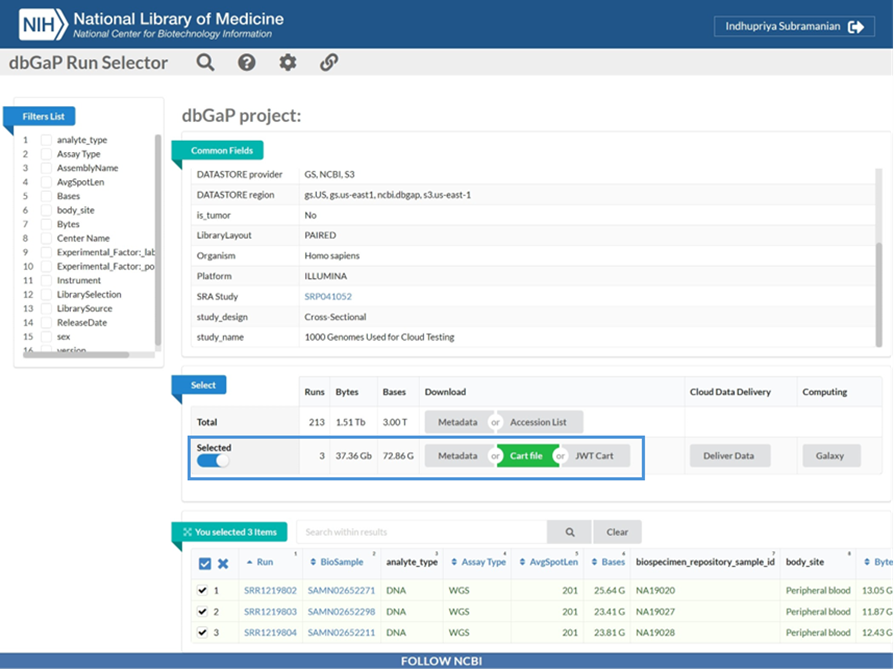
- Log into the Cavatica platform (https://cavatica.sbgenomics.com/) using your eRA Commons account.
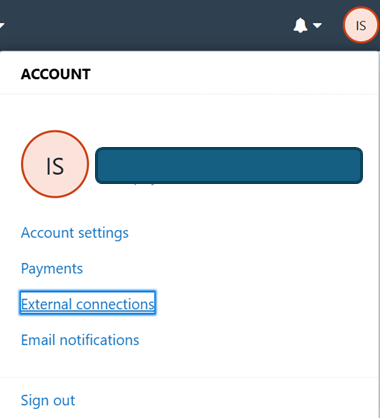
- Click on the user account details on the right corner and go to External Connections page.
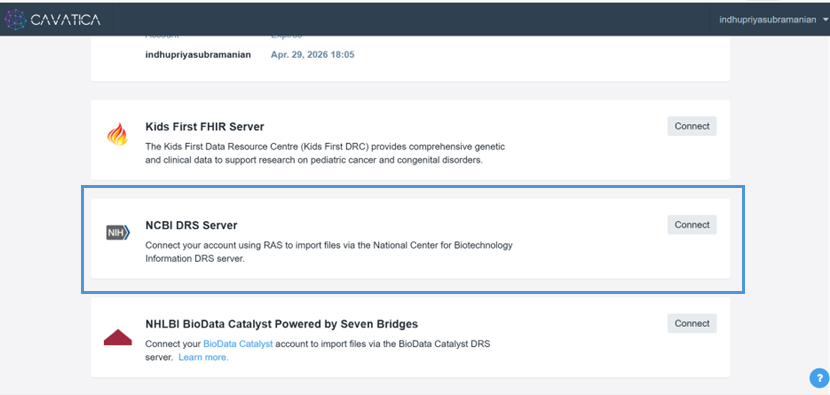
- Connect to NCBI DRS Server using your RAS credentials.
- After successful connection, create a project or access an existing project where you would like to import the SRA files.
- Select the Files tab and click Add Files.
- Import the downloaded SRA manifest file into your Project.
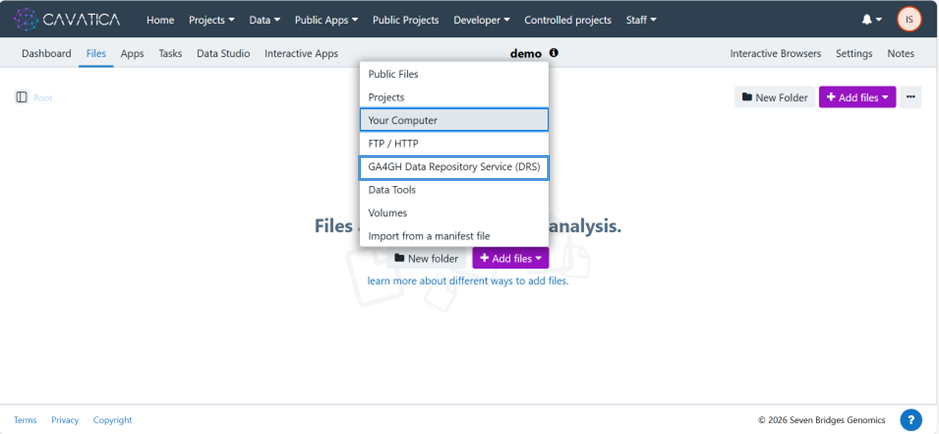
Once the files are added to the Project, you can analyse them in Cavatica. The Cavatica platform supports further processing of files from the manifest.
- Go to the Public Apps menu and select Workflows and Tools to view the public apps collection on the platform and browse your app of interest (SRA to DRS converter, SBG convert SRA/BAM to FASTQ, SRA fasterq-dump etc).
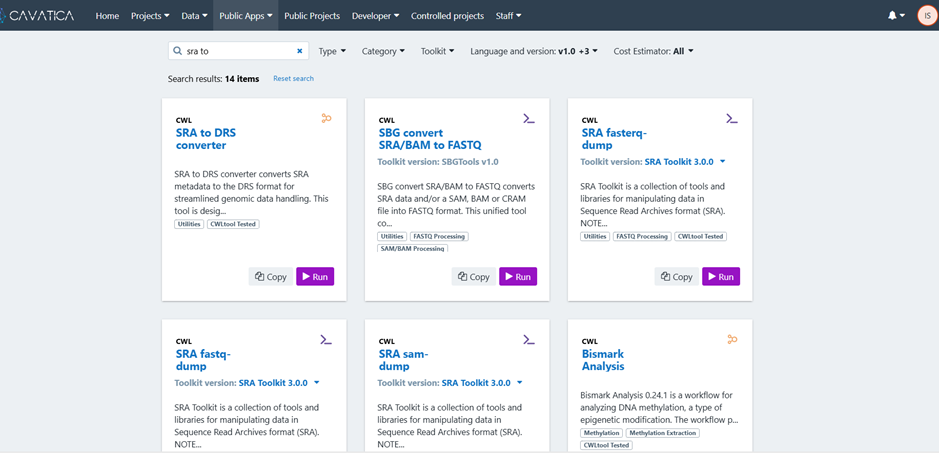
- To determine which app best suits your needs, click on the App name to open its info page. View details including the purpose of the App, App tools/pipeline, input files required, App parameters, and expected output files.
- Copy the App of interest to your project.
- Once copied, click Run to execute the App.
That’s it! You can now seamlessly work with SRA data files on Cavatica platform.
Updated 6 months ago